550 5.7.515 / 5.7.509 “Access denied”: your domain’s email is being rejected — here is the fix, in the right order
First published 19 October 2026 · Verified against Microsoft Learn and Microsoft Support documentation (links at each step) · This guide covers both error codes, because they look alike and are constantly confused.
550 Undelivered — message rejected by the receiving server
Access denied, sending domain does not pass DMARC verification and has a DMARC policy of reject.
Spf = FailDkim = PassDMARC = Pass
A real bounce carries its own diagnosis — the chips above are the first thing this guide teaches you to read.
The fast answer
Do not change any DNS yet. First, read your bounce message and find which of these two errors you actually have — the fix order depends on it:
“…does not pass DMARC verification and has a DMARC policy of reject” → that is 550 5.7.509. A receiving server is enforcing your own DMARC p=reject policy against your own mail, because your messages are failing DMARC. Usual cause: DKIM was never switched on for your custom domain in Microsoft 365, or SPF is broken. It can hit a business of any size.
“…does not meet the required authentication level” → that is 550 5.7.515, from Outlook.com / Hotmail. Under Microsoft’s high-volume sender rules, SPF and DKIM must each pass and a DMARC record must exist. A bounce can show DMARC= Pass and still be rejected because one leg failed.
Both are fixed by the same work, in this order: diagnose → SPF → DKIM → DMARC. The full procedure, with the exact records, is below.
What you are looking at, in plain words
When your email arrives, the receiving server runs three identity checks on your domain:
Check
What it proves
Where it lives
SPF
“This server is allowed to send for my domain.”
A TXT record on your domain
DKIM
“This message was signed by my domain and not altered.”
Two CNAME records + a switch in Microsoft 365
DMARC
“At least one of SPF or DKIM passed and matches my From domain — and here is what to do if neither does.”
A TXT record at _dmarc
The word that causes most of the pain is alignment: a check only counts for DMARC if the domain it passed for is the same domain your customers see in the From address. Microsoft 365, left on its defaults, signs your mail with your onmicrosoft.com domain — which never aligns with your real domain. That single default is behind a large share of these bounces.
The three checks, and the one word that decides everything: alignment. A pass only counts when its domain matches the domain in your From address.The two errors this page fixes — same family, different diseases. The bounce’s exact wording tells you which one you have. Diagram: Merroway, drawn from Microsoft’s published sender requirements.
Step 0 — Prove which part is failing (5 minutes, no changes)
Open the full bounce message and copy the verdict line. Real bounces spell it out, for example: Spf= Fail , Dkim= Pass , DMARC= Pass. Whichever item says Fail is your broken leg.
Look up what your domain currently publishes. In any DNS checker, look up: the TXT record at your root domain (your SPF — there must be exactly one starting v=spf1); the TXT record at _dmarc.yourdomain (your DMARC and its p= value); the CNAME records at selector1._domainkey.yourdomain and selector2._domainkey.yourdomain (your DKIM — missing CNAMEs mean DKIM was never set up).
Write down what you found before touching anything. Every fix below starts from this picture.
Draw the path your mail actually takes. In the Exchange admin center, open Mail flow → Connectors. If a connector routes your outbound mail through a separate filtering or security service, that service is part of your sending path — it must sit inside your SPF record, and anything it changes in a message can break DKIM (there is a ladder rung for exactly this below). A domain can have perfect records for a path its mail never takes.
SAMPLE HEADER
Authentication-Results: mx.microsoft.com;
spf=fail(sender IP is 203.0.113.24) smtp.mailfrom=contoso.com
dkim=pass header.d=contoso.com header.s=selector1
dmarc=pass action=none header.from=contoso.com
Do this: open your bounced message’s full headers and find the Authentication-Results block. Read the three verdicts, not the noise around them. This sample is the classic 5.7.515 trap: DMARC says pass, yet the mail still bounced — because Microsoft’s high-volume gate demands SPF and DKIM, and the red line is the one that failed. Sample values; your domain and selector will differ.Do this: draw your own path before touching DNS. Most small businesses have no middle box — mail goes straight out. If yours does, every later step must include it.
Do not fix the wrong thing first. If DKIM is your failing leg, editing SPF will not help, and every extra record you add makes the real diagnosis harder. Microsoft’s own guidance is a gradual, verify-as-you-go approach — enforcement last, not first.
The order this page follows — every step is verified before the next one begins. Skipping ahead is how domains end up more broken than they started.
Fix 1 — SPF: one record, the right include, under the limit
There is nothing to set inside Microsoft 365 for SPF — the record lives at your DNS host. For a domain that sends only through Microsoft 365, the official record is:
v=spf1 include:spf.protection.outlook.com -all
If a v=spf1 record already exists, edit it — never add a second one. Two SPF records on the same name cause a permanent error (permerror) and fail everything.
Add the include: for every other service that sends as your domain (your invoicing tool, your shop, your newsletter) into that same single record, before the -all.
Count your lookups: include:, a, mx, exists and redirect each cost lookups, and the limit is 10. Over the limit = permerror = SPF fails for everyone.
Each subdomain that sends (for example marketing.yourdomain) needs its own SPF record — the root record does not cover it.
Your DNS host → Add record (Cloudflare layout shown — every host has these same fields)
Type1TXT
Name2@ (your domain root — some hosts want it left blank)
Do this: one TXT record at the root. If a v=spf1 record is already there, edit that one — a second SPF record breaks both. Add an include: for every other service that sends as your domain before the -all, and keep the whole record under the 10-lookup limit. Field map drawn by Merroway from the documented fields; values are Microsoft’s official record.
Select the DKIM tab. Find your custom domain and slide its toggle from Disabled to Enabled.
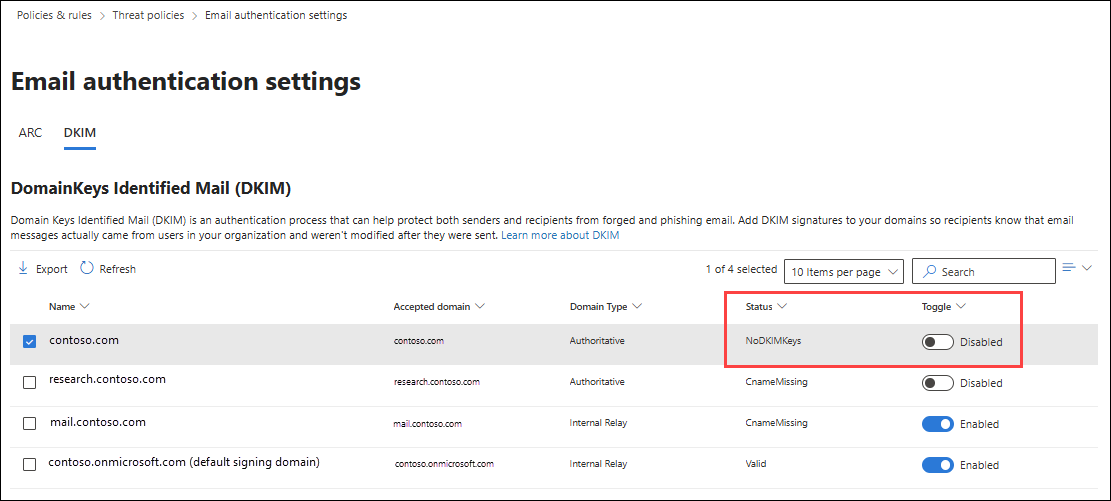
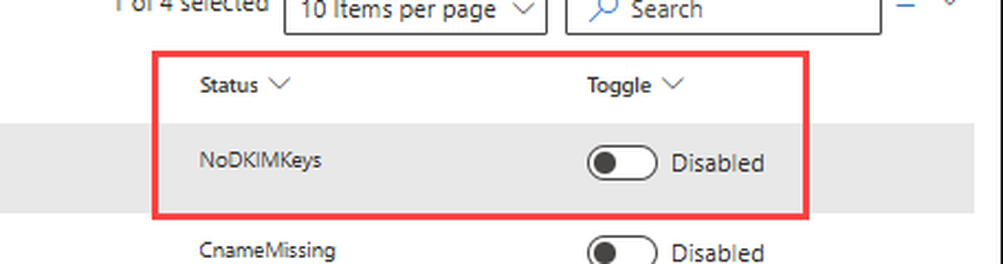
The screen this fix lives on — Defender portal → Email authentication settings → DKIM tab. A domain that was never set up looks exactly like the top row: Status NoDKIMKeys, Toggle Disabled (red box, enlarged below it). Screenshot: Microsoft Defender portal, Microsoft Learn interface excerpt via Palisade.
A “Client error” dialog appears — this is expected. It contains the exact CNAME values your tenant needs. Select OK. The domain’s status becomes CnameMissing.
Click the domain row to open its details, and in the Publish CNAMEs section, copy the two CNAME values exactly as shown. Do not copy values from any blog post, video, or this page — the targets contain a tenant-specific part that only your portal knows. Microsoft states this warning itself: the published example values “are for illustration only.”
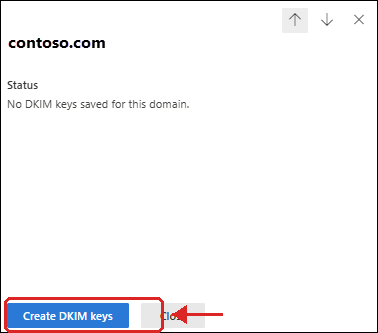
Clicking your domain opens this flyout. If it says “No DKIM keys saved for this domain”, press Create DKIM keys (marked, enlarged below) — the portal then shows the two CNAME values that only your tenant knows. Screenshot: Microsoft Learn interface excerpt via Palisade; red mark by Merroway.
At your DNS host, create both CNAMEs. The host names are selector1._domainkey and selector2._domainkey. If your DNS host automatically appends your domain (GoDaddy does this, for example), enter only selector1._domainkey — entering the full name creates a doubled domain and the status stays on CnameMissing. Create a CNAME, not a TXT record, and set TTL to at least 3600 (one hour) on both.
Your DNS host → Add record — create this record TWICE (selector1, then selector2)
TypeCNAME
Nameselector1._domainkey then selector2._domainkey
Contentthe value from Publish CNAMEs in YOUR portal flyout — never from a website
ProxyDNS only (Cloudflare: grey cloud) — a proxied CNAME hides the key
Save
Do this: both records, exactly as your flyout shows them, then wait for them to resolve before sliding the signing toggle on. If your host appends your domain automatically, the Name is just selector1._domainkey — never type the domain twice. Field map drawn by Merroway.
Wait a few minutes (Microsoft says detection takes “a few minutes, or possibly longer”), return to the flyout, and turn on Sign messages for this domain with DKIM signatures. Success looks like: toggle Enabled, status “Signing DKIM signatures for this domain”.
DMARC also lives at your DNS host, as a TXT record at the host name _dmarc. The safe order — this is Microsoft’s documented rollout — is:
Monitor first:v=DMARC1; p=none; pct=100; rua=mailto:you@yourdomain — mail flows normally while reports show you every service sending as your domain and which ones fail.
Then quarantine: raise to p=quarantine once your real senders all pass (you can ramp pct= gradually).
Reject last:p=reject only when reports are clean. Save the parent domain for last if you also run subdomains.
The p=reject trap. If your domain is hard-down right now because p=reject was switched on before your own mail was aligned (a security checklist or one-click tool did this to many small businesses), do Fix 2 first — most cases clear with no policy change at all. If you must relieve pressure today, step p=reject back to p=quarantine or p=nonetemporarily while you finish the fixes, then climb back up. Know the cost: at p=none your domain has no spoofing protection. And never delete the DMARC record entirely — Outlook.com’s rules require one to exist, so deletion trades this bounce for the 5.7.515 bounce.
Do this: start at p=none and read the reports that arrive at your rua address. Climb only when every real sender passes: p=none → p=quarantine → p=reject. Field map drawn by Merroway; the record is the documented starting point from Microsoft’s rollout.
Prove it worked
Send a message from your Microsoft 365 account to a mailbox outside your organisation (a personal Gmail or Outlook.com account works). Testing inside your own domain proves nothing — no DKIM signature is added to internal mail.
In that mailbox, open the message’s full headers (“Show original” in Gmail, or paste the headers into Microsoft’s own Message Header Analyzer).
Find Authentication-Results. You want all three, with your own domain on them: spf=pass, dkim=pass with header.d= showing your domain (not onmicrosoft.com), and dmarc=pass.
Do this: compare your test message’s three lines with this sample. All three pass, and the domains on them are yours — if header.d= shows an onmicrosoft.com address instead, Fix 2 has not taken effect yet.
Also confirm the DNS side from your own computer. On Windows: nslookup -type=CNAME selector1._domainkey.yourdomain and the same for selector2. On macOS or Linux: dig CNAME selector1._domainkey.yourdomain +short. Each should return a target ending in dkim.mail.microsoft or onmicrosoft.com.
Timing honesty: DNS changes can take from a few minutes to 48 hours to be visible everywhere, and Microsoft’s own portal can lag behind reality. If a check fails in the first hour after a correct change, wait and re-test before changing anything else. Changing records repeatedly during propagation is how a one-hour problem becomes a three-day one.
Still bouncing? Work this ladder in order
A tool sends as you, and it is not authenticated. Invoicing, your shop platform, a CRM or a newsletter tool sending “from” your domain needs its own place in your SPF record and ideally its own DKIM signing with your domain — or it should send from a subdomain you authenticate separately. This is the most common reason a “fixed” domain still bounces.
SPF and DKIM pass, but DMARC still fails. That is alignment: compare the bounce’s smtp.mailfrom= and header.d= domains against your From domain. If either shows a different domain (a vendor’s domain, or onmicrosoft.com), that leg does not count, however green its “pass” looks.
Your mail leaves through a filter or gateway that is not in your records. Step 0’s connector check names it: an outbound filtering service sends on your behalf, so its servers belong in your SPF record, and DKIM signing must be arranged so the signature survives the trip — sign before it only if it passes messages untouched; otherwise the last system in the path must be the one that signs. Until the path and the records describe the same journey, DMARC keeps failing behind correct-looking DNS.
DKIM passes in tests but fails on real mail. Something is editing messages after they are signed — a gateway adding a disclaimer or footer, a tool rewriting links for tracking, a filter re-wrapping the message. Any change to the signed body breaks DKIM’s body hash, however perfect the DNS is. Make the message final before it is signed, and stop every later system from editing signed mail.
permerror in the results. Two SPF records, or more than 10 DNS lookups in one record. Merge into a single record and remove tools you no longer use.
DKIM status stuck on CnameMissing. Work Microsoft’s own mistake list: host name entered with the full domain appended twice; a TXT record created instead of a CNAME; only selector1 created; TTL under 3600; or a target typed by hand instead of copied from your portal. The portal values are the only correct values.
Only mail to Outlook.com / Hotmail bounces, everything else is fine. After you have verified all three checks genuinely pass and align, this can be a sender-reputation or listing issue on Microsoft’s consumer side. That is the honest last rung: Microsoft’s Outlook.com deliverability support is the route, and it is a process, not a setting.
Mistakes that make it worse
Adding a second SPF record instead of editing the existing one.
Copying DKIM CNAME values from a blog, video or another company’s screenshot.
Raising DMARC to p=reject before every real sender passes.
Deleting DMARC to “stop the bounces”.
Changing three records at once, then being unable to tell which change helped or hurt.
FAQ — the issues behind this error, answered
What is the difference between 550 5.7.515 and 550 5.7.509?
5.7.509 is DMARC policy enforcement: a receiver honoured your domain’s p=reject because the message failed DMARC — any sender volume, any receiver that enforces DMARC. 5.7.515 is Outlook.com’s high-volume sender rule (5,000+ messages a day to Microsoft consumer mailboxes from one From domain), where SPF and DKIM must each pass and a DMARC record must exist. Same cure, different door.
My bounce says DMARC = Pass. Why was I rejected?
Under the 5.7.515 rules, read the individual Spf= and Dkim= verdicts. DMARC can pass on the strength of one aligned leg while the other leg fails — and that failing leg is enough for rejection. Real bounces reported under Microsoft’s own announcement show exactly this pattern, in both directions.
I am a small business. I do not send 5,000 emails a day.
Then your error is most likely 5.7.509, which has no volume threshold at all. Check the exact wording in your bounce — “policy of reject” means 5.7.509, whatever the subject line of the forum post you found called it.
Verification note: error texts, record values, portal navigation, limits and rollout order on this page were checked against the official Microsoft pages listed above on 19 October 2026. If Microsoft changes a portal path or a rule, this page’s changelog will say so here.
Did this fix work for you?
Your reaction tells us whether this guide solved the problem it promised to solve.